
4.6 KiB
sidebar_position, slug
| sidebar_position | slug |
|---|---|
| -4 | /select_pdf_parser |
Select PDF parser
Select a visual model for parsing your PDFs.
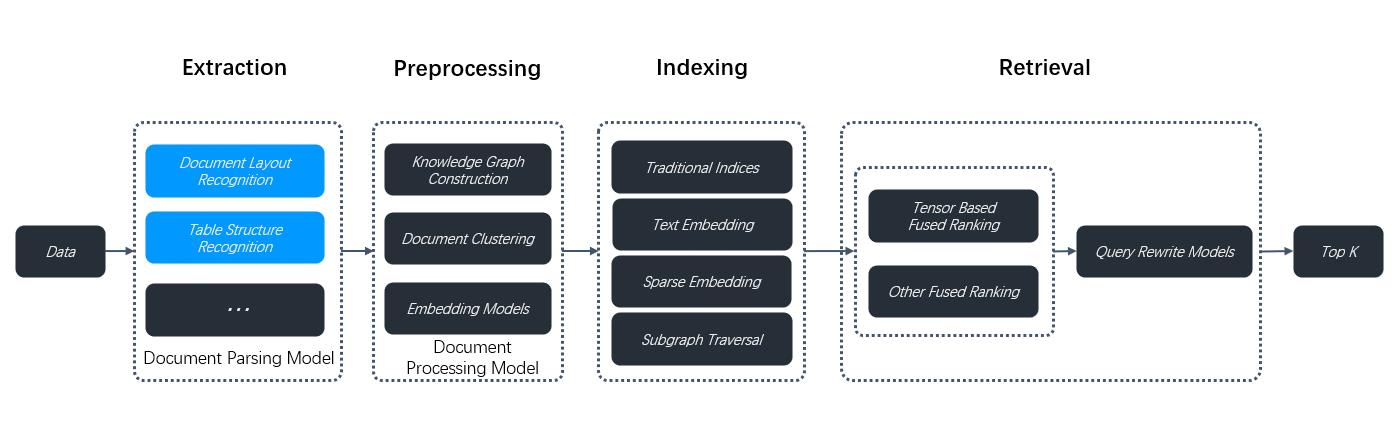
RAGFlow isn't one-size-fits-all. It is built for flexibility and supports deeper customization to accommodate more complex use cases. From v0.17.0 onwards, RAGFlow decouples DeepDoc-specific data extraction tasks from chunking methods for PDF files. This separation enables you to autonomously select a visual model for OCR (Optical Character Recognition), TSR (Table Structure Recognition), and DLR (Document Layout Recognition) tasks that balances speed and performance to suit your specific use cases. If your PDFs contain only plain text, you can opt to skip these tasks by selecting the Naive option, to reduce the overall parsing time.
Prerequisites
- The PDF parser dropdown menu appears only when you select a chunking method compatible with PDFs, including:
- General
- Manual
- Paper
- Book
- Laws
- Presentation
- One
- To use a third-party visual model for parsing PDFs, ensure you have set a default VLM under Set default models on the Model providers page.
Quickstart
-
On your dataset's Configuration page, select a chunking method, say General.
The PDF parser dropdown menu appears.
-
Select the option that works best with your scenario:
- DeepDoc: (Default) The default visual model performing OCR, TSR, and DLR tasks on PDFs, but can be time-consuming.
- Naive: Skip OCR, TSR, and DLR tasks if all your PDFs are plain text.
- MinerU: (Experimental) An open-source tool that converts PDF into machine-readable formats.
- Docling: (Experimental) An open-source document processing tool for gen AI.
- A third-party visual model from a specific model provider.
:::danger IMPORTANT Starting from v0.22.0, RAGFlow includes MinerU (≥ 2.6.3) as an optional PDF parser of multiple backends. Please note that RAGFlow acts only as a remote client for MinerU, calling the MinerU API to parse documents and reading the returned files. To use this feature: :::
- Prepare a reachable MinerU API service (FastAPI server).
- In the .env file or from the Model providers page in the UI, configure RAGFlow as a remote client to MinerU:
MINERU_APISERVER: The MinerU API endpoint (e.g.,http://mineru-host:8886).MINERU_BACKEND: The MinerU backend:"pipeline"(default)"vlm-http-client""vlm-transformers""vlm-vllm-engine""vlm-mlx-engine""vlm-vllm-async-engine""vlm-lmdeploy-engine".
MINERU_SERVER_URL: (optional) The downstream vLLM HTTP server (e.g.,http://vllm-host:30000). Applicable whenMINERU_BACKENDis set to"vlm-http-client".MINERU_OUTPUT_DIR: (optional) The local directory for holding the outputs of the MinerU API service (zip/JSON) before ingestion.MINERU_DELETE_OUTPUT: Whether to delete temporary output when a temporary directory is used:1: Delete.0: Retain.
- In the web UI, navigate to your dataset's Configuration page and find the Ingestion pipeline section:
- If you decide to use a chunking method from the Built-in dropdown, ensure it supports PDF parsing, then select MinerU from the PDF parser dropdown.
- If you use a custom ingestion pipeline instead, select MinerU in the PDF parser section of the Parser component.
:::note All MinerU environment variables are optional. When set, these values are used to auto-provision a MinerU OCR model for the tenant on first use. To avoid auto-provisioning, skip the environment variable settings and only configure MinerU from the Model providers page in the UI. :::
:::caution WARNING Third-party visual models are marked Experimental, because we have not fully tested these models for the aforementioned data extraction tasks. :::
Frequently asked questions
When should I select DeepDoc or a third-party visual model as the PDF parser?
Use a visual model to extract data if your PDFs contain formatted or image-based text rather than plain text. DeepDoc is the default visual model but can be time-consuming. You can also choose a lightweight or high-performance VLM depending on your needs and hardware capabilities.
Can I select a visual model to parse my DOCX files?
No, you cannot. This dropdown menu is for PDFs only. To use this feature, convert your DOCX files to PDF first.