
5.5 KiB
sidebar_position, slug, sidebar_custom_props
| sidebar_position | slug | sidebar_custom_props | ||
|---|---|---|---|---|
| 1 | /begin_component |
|
Begin component
The starting component in a workflow.
The Begin component sets an opening greeting or accepts inputs from the user. It is automatically populated onto the canvas when you create an agent, whether from a template or from scratch (from a blank template). There should be only one Begin component in the workflow.
Scenarios
A Begin component is essential in all cases. Every agent includes a Begin component, which cannot be deleted.
Configurations
Click the component to display its Configuration window. Here, you can set an opening greeting and the input parameters (global variables) for the agent.
Mode
Mode defines how the workflow is triggered.
- Conversational: The agent is triggered from a conversation.
- Task: The agent starts without a conversation.
- Webhook: Receive external HTTP requests via webhooks, enabling automated triggers and workflow initiation.
When selected, a unique Webhook URL is generated for the current agent.
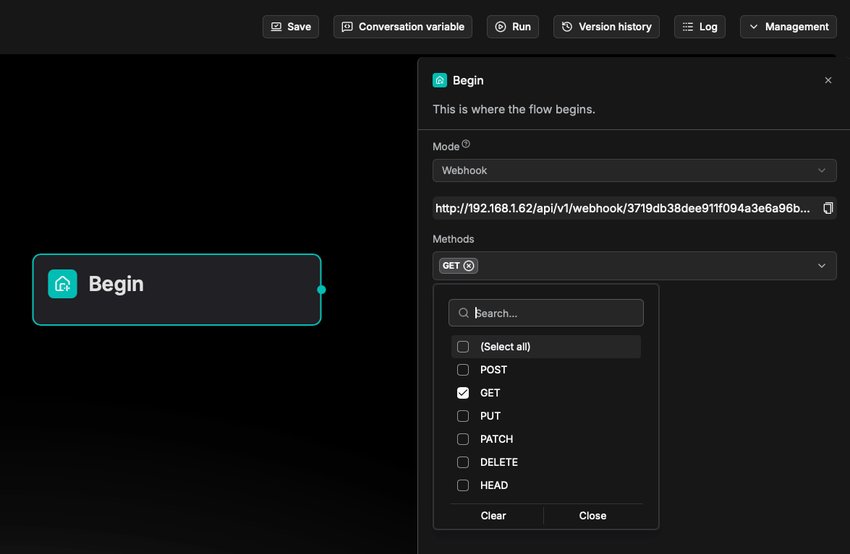
Methods
The supported HTTP methods. Available only when Webhook is selected as Mode.
Security
The authentication method to choose, available only when Webhook is selected as Mode. Including:
- token: Token-based authentication.
- basic: Basic authentication.
- jwt: JWT authentication.
Schema
The schema defines the data structure for HTTP requests received by the system in Webhook mode. It configurations include:
- Content type:
application/jsonmultipart/form-dataapplication/x-www-form-urlencodedtext-plainapplication/octet-stream
- Query parameters
- Header parameters
- Request body parameters
Response
Available only when Webhook is selected as Mode.
The response mode of the workflow, i.e., how the workflow respond to external HTTP requests. Supported options:
- Accepted response: When an HTTP request is validated, a success response is returned immediately, and the workflow runs asynchronously in the background.
- When selected, you configure the corresponding HTTP status code and message in the Begin component.
- The HTTP status code to return is in the range of
200-399.
- Final response: The system returns the final processing result only after the entire workflow completes.
- When selected, you configure the corresponding HTTP status code and message in the message component.
- The HTTP status code to return is in the range of
200-399.
Opening greeting
Conversational mode only.
An agent in conversational mode begins with an opening greeting. It is the agent's first message to the user in conversational mode, which can be a welcoming remark or an instruction to guide the user forward.
Global variables
You can define global variables within the Begin component, which can be either mandatory or optional. Once set, users will need to provide values for these variables when engaging with the agent. Click + Add variable to add a global variable, each with the following attributes:
- Name: Required
A descriptive name providing additional details about the variable. - Type: Required
The type of the variable:- Single-line text: Accepts a single line of text without line breaks.
- Paragraph text: Accepts multiple lines of text, including line breaks.
- Dropdown options: Requires the user to select a value for this variable from a dropdown menu. And you are required to set at least one option for the dropdown menu.
- file upload: Requires the user to upload one or multiple files.
- Number: Accepts a number as input.
- Boolean: Requires the user to toggle between on and off.
- Key: Required
The unique variable name. - Optional: A toggle indicating whether the variable is optional.
:::tip NOTE To pass in parameters from a client, call:
- HTTP method Converse with agent, or
- Python method Converse with agent. :::
:::danger IMPORTANT If you set the key type as file, ensure the token count of the uploaded file does not exceed your model provider's maximum token limit; otherwise, the plain text in your file will be truncated and incomplete. :::
:::note
You can tune document parsing and embedding efficiency by setting the environment variables DOC_BULK_SIZE and EMBEDDING_BATCH_SIZE.
:::
Frequently asked questions
Is the uploaded file in a dataset?
No. Files uploaded to an agent as input are not stored in a dataset and hence will not be processed using RAGFlow's built-in OCR, DLR or TSR models, or chunked using RAGFlow's built-in chunking methods.
File size limit for an uploaded file
There is no specific file size limit for a file uploaded to an agent. However, note that model providers typically have a default or explicit maximum token setting, which can range from 8196 to 128k: The plain text part of the uploaded file will be passed in as the key value, but if the file's token count exceeds this limit, the string will be truncated and incomplete.
:::tip NOTE
The variables MAX_CONTENT_LENGTH in /docker/.env and client_max_body_size in /docker/nginx/nginx.conf set the file size limit for each upload to a dataset or RAGFlow's File system. These settings DO NOT apply in this scenario.
:::