
3.2 KiB
Overview
This example will help you integrate ONLYOFFICE Docs into your web application written in .Net (C#).
It is aimed at testing the editors. Please, do not use it for production without proper modifications.
Step 1. Install ONLYOFFICE Docs
Download and install ONLYOFFICE Docs (packaged as Document Server).
See the detailed guide to learn how to install Document Server for Windows, for Linux, or for Docker.
Step 2. Download the .Net (C#) code for the editors integration
Download the .Net (C#) example from our site.
Connect the editors to your website by specifying the path to the editors installation in the settings.config file:
<add key="files.docservice.url.site" value="https://documentserver/" />
where the documentserver is the name of the server with the ONLYOFFICE Document Server installed.
If you want to experiment with the editor configuration, modify the parameters in the DocEditor.aspx file.
Step 3. Install the prerequisites
Check that your system meets the requirements:
- Microsoft .NET Framework: version 4.5 (download it from the official Microsoft website);
- Internet Information Services: version 7 or later.
Step 4. Run your website with the editors
-
Run the Internet Information Service (IIS) Manager:
Start -> Control Panel -> System and Security -> Administrative Tools -> Internet Information Services (IIS) Manager
-
Add your website in the IIS Manager.
On the Connections panel right-click the Sites node in the tree, then click Add Website.

-
In the Add Website dialog box specify the name of the folder with the .Net (C#) project in the Site name box.
Specify the path to the folder with your project in the Physical Path box.
Specify the unique value used only for this website in the Port box.

-
Check for the .NET platform version specified in IIS Manager for you website. Choose v4.0. version.
Application Pools -> right-click the platform name -> Set application Pool defaults -> .NET CLR version

-
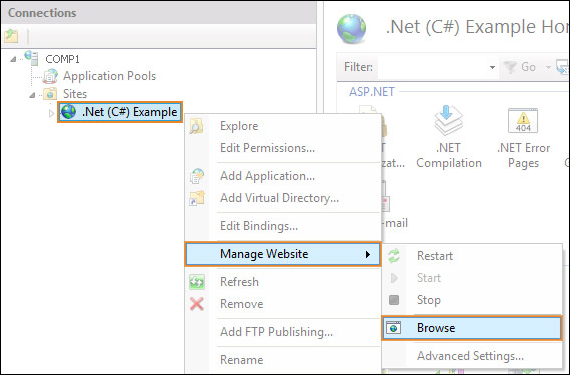
Browse your website with the IIS Manager:
Right-click the site -> Manage Website -> Browse


Step 5. Check accessibility
In case the example and Document Server are installed on different computers, make sure that your server with the example installed has access to the Document Server with the address which you specify instead of documentserver in the configuration files.
Make sure that the Document Server in its turn has access to the server with the example installed with the address which you specify instead of example.com in the configuration files.